
Organise
Work basket
What you pin goes into your work basket. The basket collects the pinned objects of all projects in one place and belongs to you alone. It is kept on the server: what you pin on your phone, you find again at your PC.
An example: ten objects come back from a loan. You recognise each one once with the live camera or look it up in its project, pin it, and then have all ten records together, whichever project they sit in.
Putting objects in the basket
Every pin puts an object in the basket: the object menu (☰) with Pin object, a click on the card with the Ctrl key held, Pin all visible in the bar at the bottom of gallery and table (Pin and hide ) or the pin on a hit of the live camera . Unpinning takes it out again.
Inside a project the cards show which of its objects are in the basket. An object in two projects is pinned in both.
Opening the basket
In the top right corner, next to the camera icon, every page shows a counter with a pin, in the main menu as in the header of a project. It says how many objects are in the basket and is missing while the basket is empty. A click opens the basket as a side panel at the right edge, a second one closes it. On a phone the basket sits with its number in the bar at the bottom and opens over the full height, see Moliri on phone and tablet .
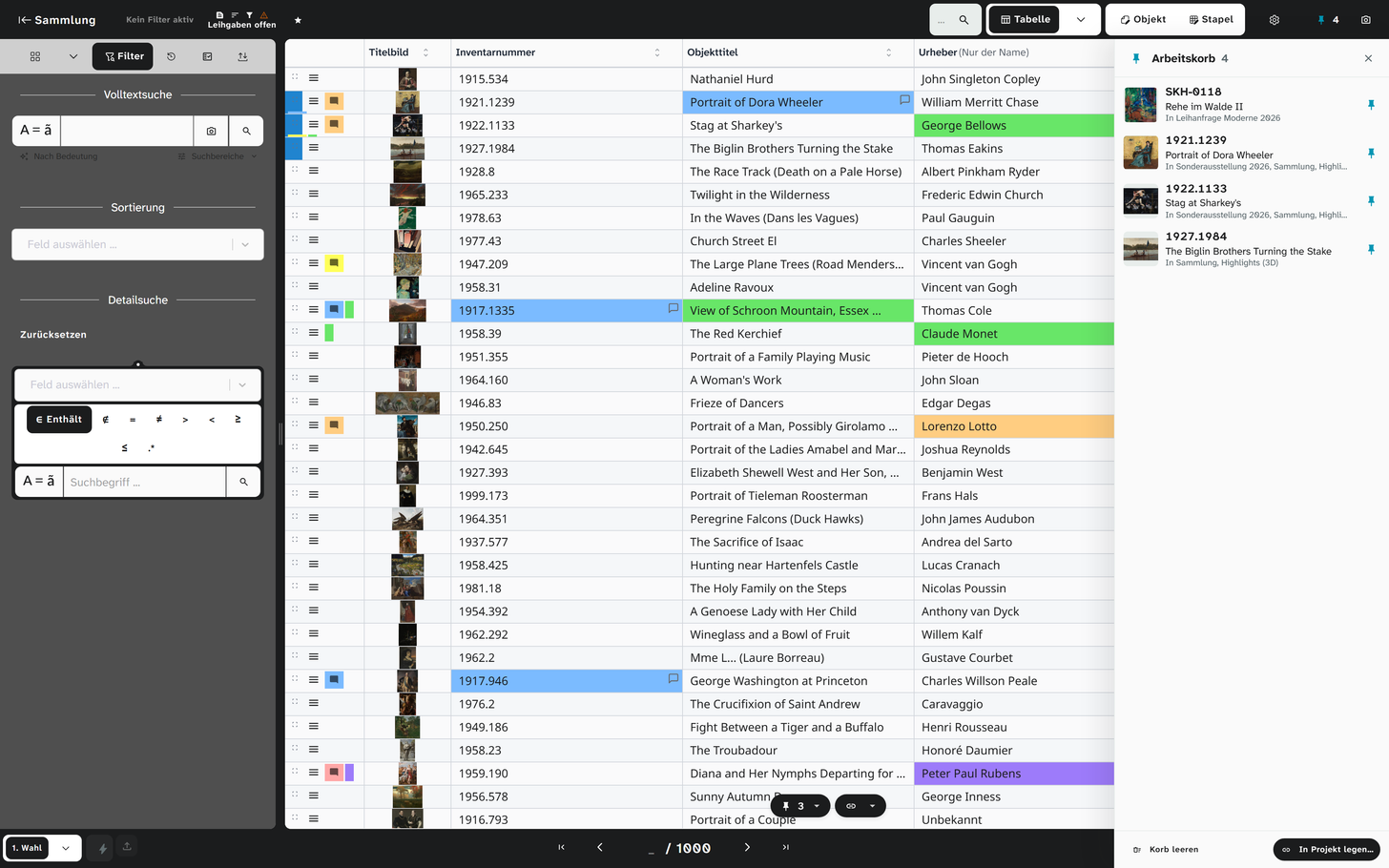
Each entry shows a preview, the inventory number, the title and the projects the object is in. The object pinned last stands at the top.
| Action | Effect |
|---|---|
| Click on an entry | Opens the object in the one of its projects you used last, else in the first by name. The side panel stays open; on narrow screens it closes |
| Pin beside the entry | Unpins the object and takes it out of the basket |
| Empty basket | Takes every object out of the basket after a confirmation. The objects themselves do not change |
| Put in project… | Links every object of the basket to a project (see below) |
Putting all objects of the basket in a project
Table, export, Word report and batch editing need the objects in one project.
-
Choose Put in project… in the basket. The dialog Put in project opens with every project you can see.
-
Choose the link (🔗) at the target project and Apply, then confirm.
-
Moliri opens the project with Show pinned only switched on: the gallery shows exactly the objects of the basket.
You can link only into projects you may write, and only with the right Link objects from other projects. Objects whose project role does not fit (collection or library) are skipped, and the message after applying says how many. More on linking in Link projects .
The basket shows only objects you may read. If you lose the right to read a project, its objects leave the basket and come back with the right. A deleted object leaves it for good.
On several devices
The basket is the same on every device and in every tab. A device where Moliri is already open shows new pins once you open the basket or reload a project.
Read on
- Pin and hide : the bar at the bottom of gallery and table
- Live camera : recognise objects by their label or look
- Link projects : one object in several projects
- Phone as companion : open objects of the basket on the computer from your phone